ip
Ollie Mission Control — User Guide
Keep your day in orbit with Ollie, a desktop task manager controlled through chat commands. Log todos, track deadlines and events, and mark completed missions off your flight plan.
Quick start
- Install Java 25. Check your version by running
java -versionin a terminal. - Download the Ollie JAR from the releases page.
- Put the JAR in a folder where you have permission to create and update files.
- Open a terminal in that folder and run
java -jar "ollie.jar". If your downloaded file has a different name, use that name instead. - Type a command in the input box and press Enter or click Transmit.
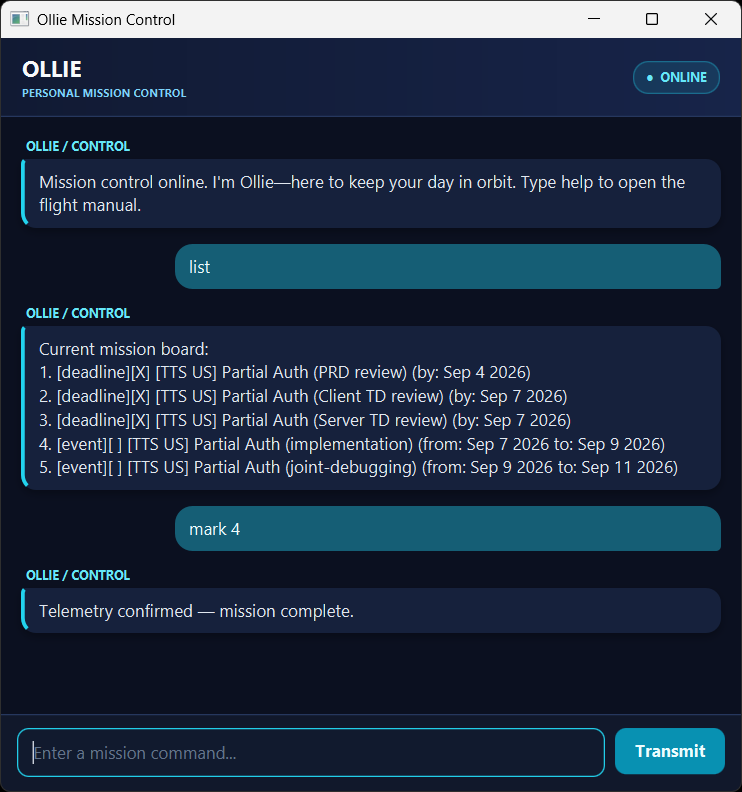
Starting with an empty task list, enter these commands one at a time to recreate the mission board in the screenshot:
deadline [TTS US] Partial Auth (PRD review) /by 2026-09-04
deadline [TTS US] Partial Auth (Client TD review) /by 2026-09-07
deadline [TTS US] Partial Auth (Server TD review) /by 2026-09-07
event [TTS US] Partial Auth (implementation) /from 2026-09-07 /to 2026-09-09
event [TTS US] Partial Auth (joint-debugging) /from 2026-09-09 /to 2026-09-11
mark 1
mark 2
mark 3
list
mark 4
You can resize the window and scroll through earlier messages.
Features
Add a todo
A todo is a task without a date.
Format: todo <description>
Ollie replies Mission logged and ready for launch. The new task appears at the end of your list.
Use list to view it.
Add a deadline
A deadline is a task with a due date.
Format: deadline <description> /by <yyyy-MM-dd>
Example: deadline [TTS US] Partial Auth (PRD review) /by 2026-09-04
Dates are displayed in a more readable format:
[deadline][ ] [TTS US] Partial Auth (PRD review) (by: Sep 4 2026)
Add an event
An event spans a start date and an end date.
Format: event <description> /from <yyyy-MM-dd> /to <yyyy-MM-dd>
Example: event [TTS US] Partial Auth (implementation) /from 2026-09-07 /to 2026-09-09
[event][ ] [TTS US] Partial Auth (implementation) (from: Sep 7 2026 to: Sep 9 2026)
The start date must be earlier than the end date; same-day events are not supported.
View and find tasks
Enter list to see your Current mission board, numbered from 1 in insertion order.
[X] means completed; [ ] means incomplete.
Before mark 4 in the quick-start example, the board looks like this:
Current mission board:
1. [deadline][X] [TTS US] Partial Auth (PRD review) (by: Sep 4 2026)
2. [deadline][X] [TTS US] Partial Auth (Client TD review) (by: Sep 7 2026)
3. [deadline][X] [TTS US] Partial Auth (Server TD review) (by: Sep 7 2026)
4. [event][ ] [TTS US] Partial Auth (implementation) (from: Sep 7 2026 to: Sep 9 2026)
5. [event][ ] [TTS US] Partial Auth (joint-debugging) (from: Sep 9 2026 to: Sep 11 2026)
Use find <keyword> to search task descriptions. For example, find review finds the PRD,
Client TD, and Server TD review tasks. Searches ignore letter case and match text within a
description; you can also search for a phrase such as find Partial Auth.
Dates and task-type labels are not searched.
Search results are numbered separately from the full list. Before marking, unmarking, or deleting
a task, run list and use its number from the full mission board, not the search results.
If there are no tasks or matches, Ollie shows only the relevant heading.
Complete, reopen, or delete a task
Use the task’s current number from list:
| Action | Command example | Result |
|---|---|---|
| Complete the implementation task | mark 4 |
Changes its status to [X], as shown in the screenshot exchange. |
| Reopen the implementation task | unmark 4 |
Changes its status to [ ]. |
| Delete the implementation task | delete 4 |
Removes it permanently from the list. |
These numbers refer to the five-task board above, without the additional todo example.
Task numbers change after deletion, so run list again before your next numbered command.
There is no undo command for deletion.
Get help or end a session
Enter help to open the flight manual with all command formats.
Enter bye to end the chat session. Ollie displays a farewell and disables the input box and
Transmit button. Close the window normally; reopen Ollie to start another session.
help, list, and bye do not accept extra arguments.
Saving your flight plan
Ollie automatically saves after a successful add, mark, unmark, or delete command. There is no separate save command. Saved tasks are loaded when you first use a task-related command in a new session.
Your tasks are stored in data/ollie.txt, relative to the folder where you launch Ollie.
On first use, a missing data file means an empty task list; Ollie creates the folder and file
when you first change the list. Always launch from the same folder to keep using the same data.
Back up data/ollie.txt if you want to preserve a copy of your tasks.
Course corrections: fixing errors
Errors are highlighted in the chat with Course correction needed and an explanation. Correct the command and try again.
| Problem | How to correct it |
|---|---|
| Unknown command or missing description | Type help, then use a supported format with a description. |
| Missing, repeated, or misplaced date parameter | Use one /by for deadlines, or one /from followed by one /to for events. |
| Invalid date, such as February 30 | Enter a real date in yyyy-MM-dd format. |
| Invalid task number | Run list and use a positive whole number within the displayed range. |
| Task already has the requested status | Use unmark to reopen a completed task, or mark to complete an incomplete one. |
| Duplicate task | Change the description or dates, or use the existing task. Tasks with the same type, description, and dates are duplicates even if their completion statuses differ; letter case and extra spaces in descriptions are ignored. |
| Task file cannot be read or contains invalid data | Check the launch folder and file permissions. Back up the file before repairing the reported line or restoring a known-good copy, then retry. Ollie does not silently replace invalid data. |
| Task file cannot be saved | Ensure the launch folder and data folder are writable, and data/ollie.txt is a file rather than a folder. The attempted task-list change is reverted in memory; fix the problem and retry. |